Detect. Protect. Respond.
These are the three parts of the duty manager's screen. A concern comes in. The controller chooses what is happening. Staff get one set of instructions, and the record is kept.
Three columns. One incident.
Detect, Protect and Respond are the columns the duty manager works from. They are not a timer.
A concern is raised
A visitor or staff member reports something. It appears on the Live Concern Feed. The reporter picks a zone, or says they do not know. They can keep chatting.
What is happening?
The controller picks the response. If they loaded a concern, a mode is already suggested. Emergency modes need Stage, then a PIN. That stop is on purpose.
Record and close
If life is at risk, call 999 first. Venguard never replaces that call. The screen shows who has read the alert. Staff can ask for backup. When it is over, the controller Clears and starts the post-incident review.
From tap to Clear
This is the path for someone who needs medical help. Other concerns follow the same shape. The controller can also send an alert without a concern.
Someone reports it
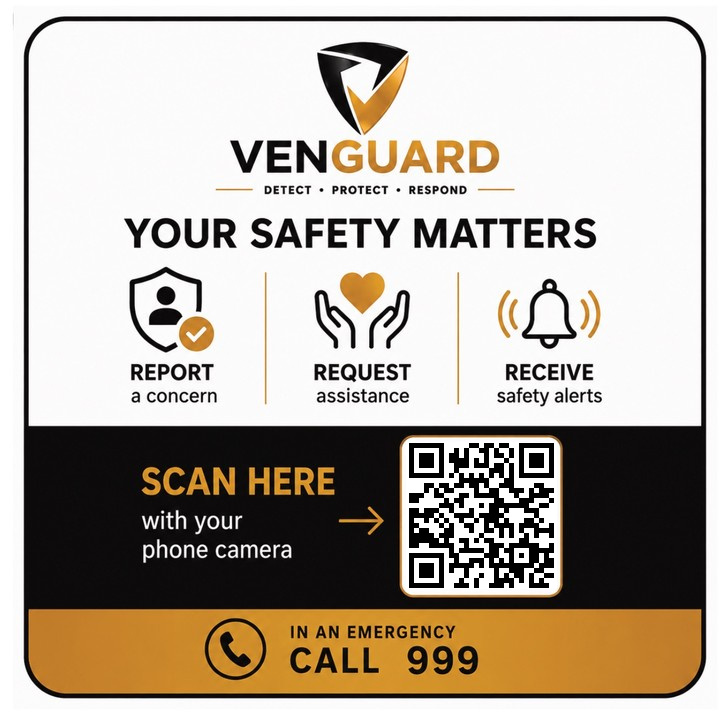
They scan a sticker or tap an NFC plate. The venue is already known. They pick the zone they are in, or tap I don't know.
They ask for medical help
They choose Request Assistance, then Medical assistance. Because this is high risk, they confirm they have thought about 999 before they send.
They get a concern number
They can chat with the controller from that page. They do not need an account.
It appears in Detect
The duty manager sees it on the Live Concern Feed. They open it, acknowledge it, and load it into the workflow.
Protect suggests Medical
The controller checks the zone and who should see the alert. Emergency modes need Stage, then their own PIN. Nothing goes out before that.
Staff get one message
Everyone who should see it gets the same staff wording. Today that is Staff Console on a phone browser. The Staff App is coming soon. TVs and the public page update only if the alert is for staff and public.
Respond shows who has read it
The controller sees who has read the alert. Staff can press Need Backup. The controller can message staff.
Clear, then review
When it is safe, the controller Clears. A post-incident review is waiting. They can export an Evidence Snapshot if they need the record now.
Six response modes
Evacuate, Invacuate, Lockdown and Medical need Stage and a PIN. Welfare is always staff only. Informational starts as staff only, and can be sent to the public.
Leave by the nearest safe exit and follow staff instructions.
Move inside, secure your location and follow staff instructions.
Move inside, stay out of sight and follow staff instructions.
Keep walkways clear and follow staff instructions.
Staff only. Discreet help for a person who needs support.
A staff message. Send it to the public only if you choose to.
All Clear is not a mode you pick first. When the controller Clears, every connected screen goes back to normal.
The old way vs the VENGUARD way
Start from the Wi-Fi and phones you already have. Add plates. Optional displays if you want them on the wall.
Want to see this on your venue?
Register your interest and we will walk you through a typical incident on a venue plan that matches yours. Capacity, layout and team size.